
Cartsaver Campaigns is a WhatsApp marketing tool inside Shopify that sends a promotion or announcement to a Shopify customer segment and reports the visits, orders, revenue and ROAS it brings back. You pick a template, choose an audience, see the estimated cost and launch, all without leaving your Shopify admin.
It is built for Shopify merchants who already talk to customers on WhatsApp and want to use that channel for sales, not only for order updates. Cartsaver is a Built for Shopify app by Xtnd that confirms cash on delivery orders on WhatsApp or SMS before you ship, then uses the same WhatsApp conversation for order updates, abandoned cart recovery, one-tap cross-sells, reviews and campaigns, through the official WhatsApp Business API. Campaigns is the part that starts the conversation instead of answering an order.
Who can use Campaigns?
Launching campaigns is available on the Scale and Ultra plans, with your own WhatsApp sender connected, because a marketing broadcast goes out under your brand and number. On Advanced and Unlimited you can build campaigns and save them as drafts, but the Launch button stays locked. On Free you can only view the Campaigns page; creating a campaign takes you to the plans page. Campaigns are sent on WhatsApp today; SMS campaigns are coming soon.
If your plan supports campaigns and no sender is connected yet, Cartsaver asks you to contact support to set one up. You can compare the plans on the Cartsaver pricing table.
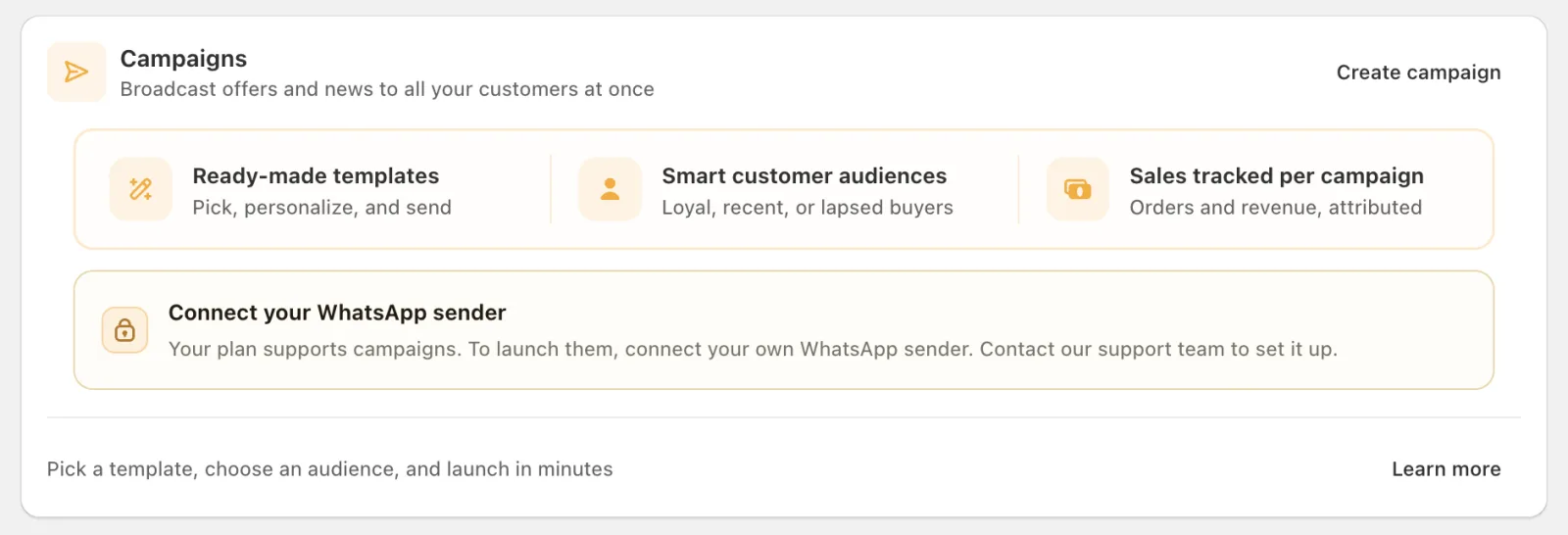
The own-sender rule exists because a marketing broadcast goes out under your brand name and your WhatsApp Business number, so replies, reputation and quality rating belong to your business. If you have not set up a branded sender yet, the sender ID configuration guide explains the options.
How does a WhatsApp campaign work?
You pick a template or start from scratch, choose a single message or a carousel, personalize the text, select a Shopify customer segment and set a start time. Cartsaver shows the estimated cost, submits the message to Meta for review, and starts sending once Meta approves it.
Watch the WhatsApp campaigns walkthrough (Arabic). Step by step:
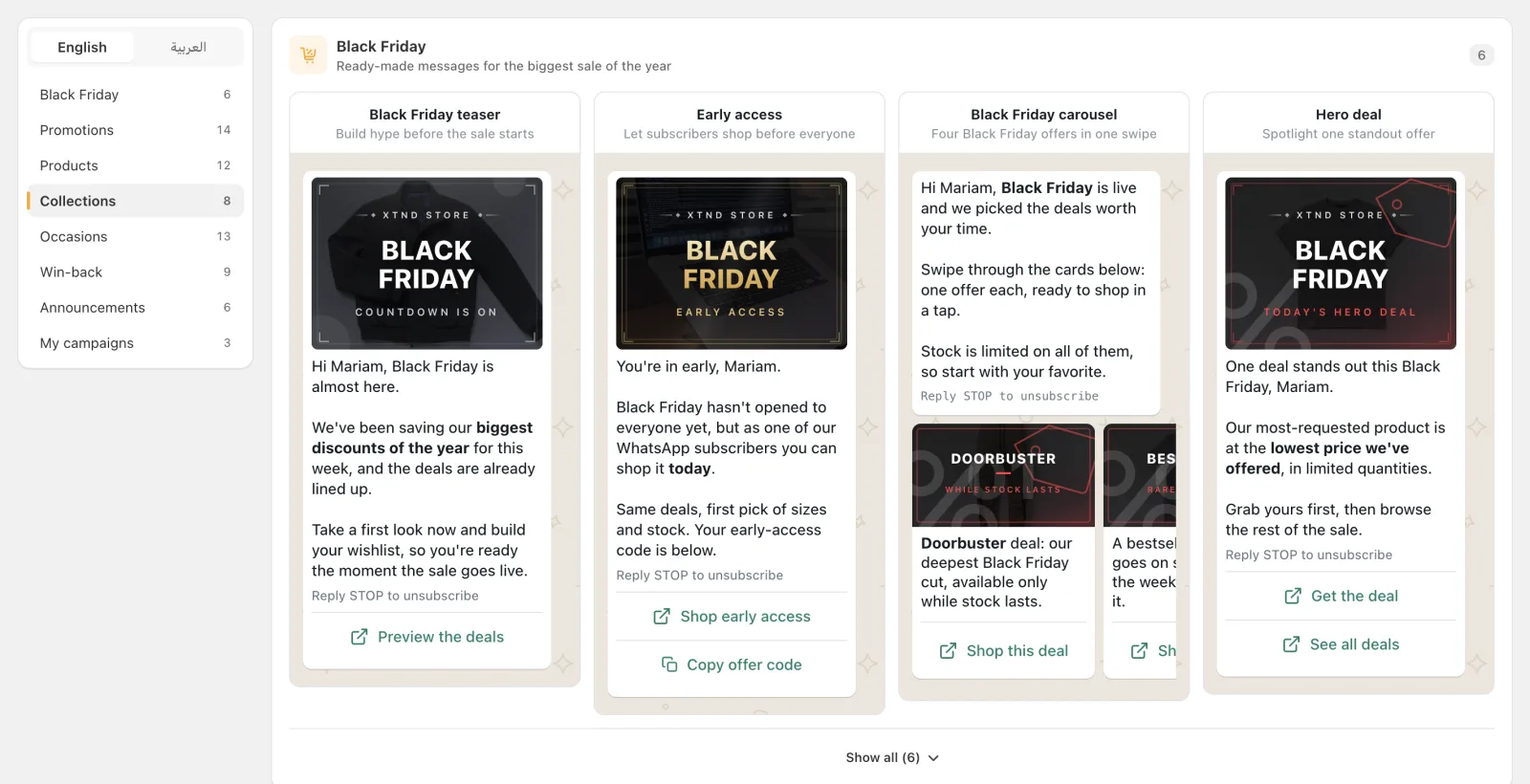
- Pick a starting point. Choose a template from the library or start from scratch. The library has 68 templates in seven categories: Black Friday, Promotions, Products, Collections, Occasions (Ramadan, Eid, national days and more), Win-back and Announcements. You can also reuse a campaign you sent before.
- Choose the format. Send a single message with a header image and buttons, or a carousel of 2 to 10 swipeable cards, each with its own image and link.
- Write and personalize. Edit the text directly in the preview, insert the customer’s first name, and add buttons: a link to your store, a copy-code button for a promo code, or a support chat button that opens your WhatsApp number.
- Choose the audience. Use any customer segment you built in Shopify, or a quick audience such as loyal, recent or lapsed buyers. Cartsaver counts how many customers in that segment have a phone number, so you know the real reach.
- Set the start time. Start as soon as Meta approves the message, or schedule a date and time in your local timezone.
- Check the estimated cost and launch. The message is submitted to Meta for review. Once approved, sending begins at the time you set.
After you submit, the message content is locked, because that is exactly what Meta approved. The campaign name, audience and start time stay editable until sending begins. If Meta rejects the message, Cartsaver shows the reason so you can edit it and submit again.
What the video covers
- 0:00 Intro and creating a campaign: open Campaigns, click Create campaign and pick a ready-made template, in English or Arabic.
- 0:26 Editing the message: change the text and image, add buttons such as a store link, a promo code or a support chat, choose a single message or a carousel, and preview it as it will look in WhatsApp.
- 0:55 Campaign details and audience: name the campaign, pick its language and choose a Shopify customer segment.
- 1:21 Start time and attribution: start as soon as Meta approves the message or schedule a date and time, and set the click and view-through attribution windows in Advanced settings.
- 1:58 Launch and Meta review: turn on the Campaign Tracking app embed if Cartsaver asks, then launch. The message goes to Meta for review and sending starts at your start time once it is approved.
- 2:24 Campaign results: open the campaign after it is sent to see visits, orders, revenue and ROAS.
Templates, carousels and ready-made banners
Most stores don’t have a designer on call for every sale, so the template library does the visual work. Product templates are dressed with real product images from your store. Concept templates come with an art-directed banner that carries your store name, and in many designs your product photos; carousel cards get their own matching banner. When you first save the draft, Cartsaver turns those banners into real images in your Shopify files, so what you preview is what customers receive.
You can replace any banner with your own media: pick an image from your Shopify files, upload one, or paste a link. Headers accept JPEG or PNG images up to 5 MB. Video headers are not available for now.
| Format | Best for | What to include |
| Single message | One offer, one announcement, a promo code | A header image, short text, one or two buttons |
| Carousel (2 to 10 cards) | Several products, a collection, a bundle, a lookbook | One image and link per card, a short text per card, the same button label on every card |
How much does a WhatsApp campaign cost?
A campaign has two costs. Meta charges a marketing rate per message that depends on the customer’s country, paid directly to Meta. Cartsaver adds a commission per delivered campaign message: $0.01 on Scale and $0 on Ultra, billed through Shopify. Cartsaver shows an estimated cost receipt before launch.
A WhatsApp campaign has two parts, and Cartsaver shows both in an estimated cost receipt before you launch:
- WhatsApp messages: Meta charges a marketing rate per message that depends on the customer’s country. You pay this directly to Meta. Cartsaver’s figure is an estimate based on Meta’s rate for your market, so actual charges can differ.
- App fee: a Cartsaver commission per delivered campaign message that depends on your plan: $0.01 on Scale and $0 on Ultra, as listed in the pricing table. This commission is separate from Meta’s message cost. It is charged as a usage charge through Shopify’s app billing, in blocks of delivered messages, and appears on your Shopify bill. The cost receipt shows the fee that applies to your plan at launch.
Because the estimate is based on customers who have a phone number, check the reachable count before launch, especially for large segments.
How does Cartsaver measure campaign revenue and ROAS?
Cartsaver credits a campaign with orders placed within 7 days of a link tap or 3 days of delivery without a tap, by default; both windows can be extended to 28 days. Attributed orders are tagged in Shopify, and the campaign page shows visits, orders, revenue and ROAS.
Campaign results are only useful if you can trust them, so Cartsaver attributes orders in two ways and lets you choose the windows:
- Click attribution: an order placed within a set number of days after the customer taps the campaign link counts for that campaign. The default is 7 days, adjustable from 7 to 28.
- View-through attribution: an order from a customer who received the message but did not tap counts within a set number of days after delivery. The default is 3 days, adjustable from 3 to 28.
Attributed orders are tagged in Shopify, so you can filter the order list by tag and check the result yourself. The campaign page shows visits, orders, revenue and ROAS (revenue divided by what the campaign cost).
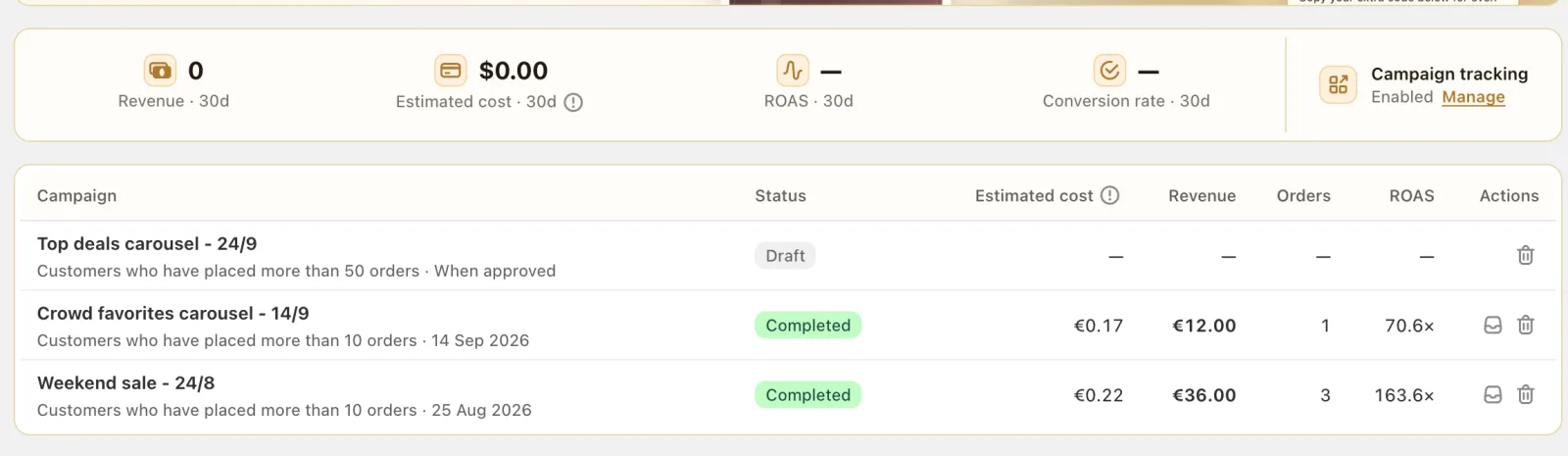
One setup step matters here: enable the Campaign Tracking app embed in your Shopify theme. Without it, Cartsaver cannot see storefront visits or attribute orders, and it asks you to activate it before launch.
Choices that make campaigns work
- Segment before you send. A lapsed-buyer win-back with a code converts differently from a new-arrivals message to loyal customers. Relevant audiences protect your sender quality rating, which Cartsaver displays (High, Medium or Low). While the rating is Medium or Low, you cannot submit a campaign for review, and campaigns that are already sending are halted.
- Give every message one job. One offer, one button. Carousels are for browsing several products, not for stacking several offers.
- Respect opt-outs. Customers can reply STOP, and Cartsaver stops sending them campaigns from your store. Only message customers who expect to hear from you.
- Expect daily limits. Meta caps how many marketing messages a sender can deliver per day. If your sender reaches that cap, Cartsaver pauses and resumes sending the next day.
- Time it for your market. Schedule around local shopping moments, such as Ramadan evenings, Eid, White Friday or payday, using the Occasions templates as a start.
Worked example: an Eid offer for lapsed buyers
A fashion store in Cairo wants to bring back customers who have not ordered in a while. The owner picks an Eid template from Occasions, switches it to a carousel of four outfits with the ready-made banners, adds the customer’s first name in the greeting and a copy-code button with an Eid promo code. For the audience, they choose lapsed buyers and check how many of those customers have a phone number. They schedule the start for the evening before Eid, review the estimated WhatsApp cost and app fee, and submit.
Meta approves the message, the campaign sends at the scheduled time, and over the following week the campaign page shows visits, orders, revenue and ROAS. Every attributed order carries the campaign tag in Shopify, so the owner can compare the result with the cost and decide whether to repeat it next season.
How Campaigns fits with the rest of Cartsaver
Campaigns starts conversations; the rest of Cartsaver handles what follows. A customer who taps through and orders with cash on delivery still goes through one-tap WhatsApp order confirmation, receives order notifications in the same chat, and if they leave without paying, abandoned cart recovery follows up. You can see every feature together in the Campaigns feature breakdown, and plan details in the Cartsaver pricing docs.
Frequently asked questions
Which Cartsaver plans include WhatsApp campaigns?
Scale and Ultra, with your own WhatsApp sender connected. Cartsaver’s campaign commission is $0.01 per delivered message on Scale and $0 on Ultra, billed through Shopify. Meta’s own message cost is billed separately. On Advanced and Unlimited you can build campaigns and save drafts but not launch them; on Free you can only view the Campaigns page.
Do WhatsApp campaigns need Meta approval?
Yes. Every campaign message is submitted to Meta as a marketing template and starts sending only after approval. If Meta rejects it, Cartsaver shows the reason so you can edit and resubmit.
Can I send campaigns to a Shopify customer segment?
Yes. Any segment you build in Shopify appears in the audience picker, next to quick audiences such as loyal, recent and lapsed buyers. Only customers with a phone number can be reached, and Cartsaver shows that count.
How do I know a campaign made money?
Turn on the Campaign Tracking app embed in your theme. Cartsaver then reports visits, orders, revenue and ROAS for each campaign, using click and view-through attribution windows you can adjust, and tags every attributed order in Shopify.
What happens if a customer replies STOP?
Cartsaver stops sending that customer campaigns from your store. Order confirmations and order updates are separate flows and are not marketing campaigns.