
Pre-checkout verification is a Cartsaver flow that checks a customer’s phone number (or email address) on the product or cart page, with a code on WhatsApp, SMS or email, before they reach Shopify checkout. The outcome: fake and mistyped numbers are stopped before an order exists, and verified customers continue to your normal checkout.
It is for cash on delivery stores that want only verified customers to place orders; the customer verifies once in a pop-up. Cartsaver is a Built for Shopify app by Xtnd that confirms cash on delivery orders on WhatsApp or SMS before you ship, then uses the same WhatsApp conversation for order updates, abandoned cart recovery, one-tap cross-sells, reviews and campaigns, through the official WhatsApp Business API. Pre-checkout is one of three ways it can verify a customer.
How does pre-checkout OTP verification work?
When a customer moves to buy from a product or cart page, a Cartsaver pop-up asks for their phone number (or email address) and sends a code on WhatsApp, SMS or email, or a WhatsApp confirmation button. Once they confirm, they continue to your normal Shopify checkout and place the order as usual.
- The customer is on a product page or in the cart and moves to buy.
- A Cartsaver pop-up, styled with your store’s colors, asks for their phone number.
- The customer picks WhatsApp, SMS or email from the channels you turned on, and Cartsaver sends the verification message.
- The customer confirms: either by tapping a button in a WhatsApp confirmation template, or by typing a numeric code.
- Verified, they continue to Shopify checkout and place the order as usual.

The pop-up is a Shopify theme app extension, so it is added without code: you turn it on in your theme editor under App embeds. You control the title and description in English and Arabic, and the colors. The code is valid for 10 minutes, and a customer can request a new one after 60 seconds.
Watch the pre-checkout OTP walkthrough (Arabic).
What the video covers
- 0:00 Intro and setup: choose pre-checkout as the verification flow, then turn on Checkout OTP Verification under App embeds in the Shopify theme editor.
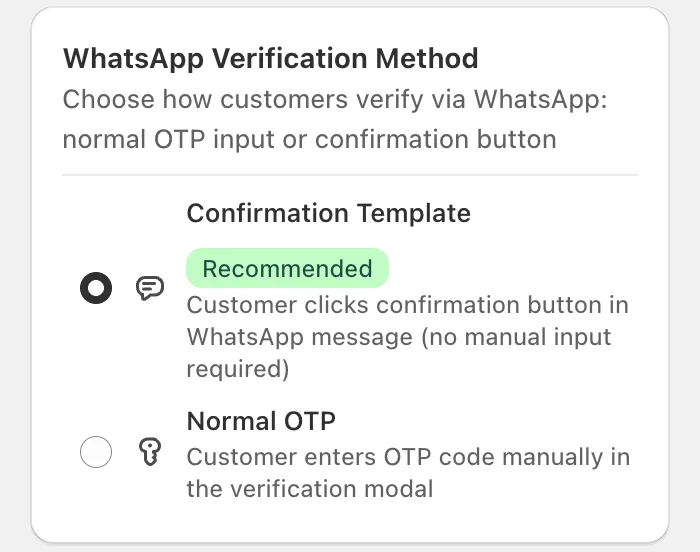
- 0:32 Verification method: a WhatsApp confirmation template the customer taps once, or a numeric code they type in.
- 0:52 Cash on delivery control: Restrict COD to verified customers shows cash on delivery only after verification; without it, COD stays available as usual. The Online Payment Bypass setting adds a Proceed with Online Payment button that lets card payers skip the code.
- 1:23 Customizing the verification screen: edit the pop-up title and description in English and Arabic, and its colors.
- 1:42 What the customer sees on the store: tapping checkout or Buy it now opens the pop-up; the customer verifies on WhatsApp, SMS or email, then continues to the normal Shopify checkout.
How is pre-checkout different from WhatsApp order confirmation and Fast Checkout?
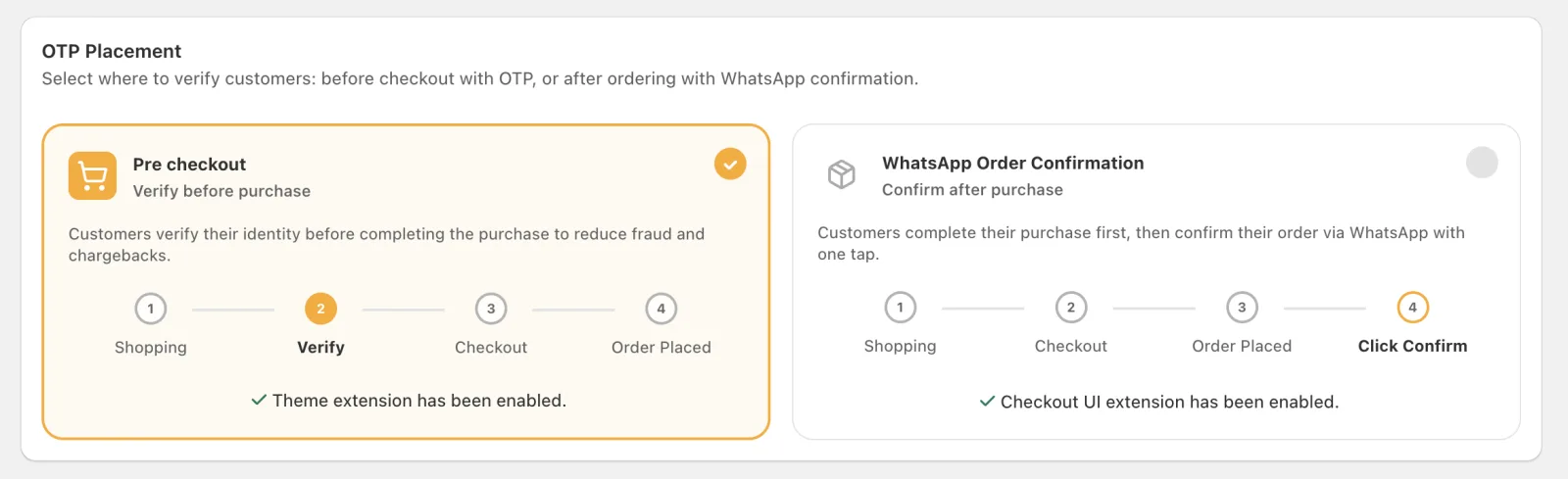
Pre-checkout verifies the phone number before checkout, so no order exists until the customer answers. WhatsApp order confirmation lets the order through and asks for one tap afterwards. Fast Checkout swaps the multi-step COD checkout for a one-page form with verification built in. Pre-checkout and WhatsApp order confirmation never run together, but Fast Checkout works with either.
Under OTP Placement you pick one: pre-checkout or WhatsApp order confirmation, and only one can be active at a time. Fast Checkout is a separate switch that works with either. With pre-checkout, your store shows the Fast Checkout form instead of the pre-checkout pop-up, and the code is entered inside that form. With WhatsApp order confirmation, the form asks for no code and the customer confirms the order with one tap afterwards, as in the middle column. The Fast Checkout column below describes it with pre-checkout. You can switch whenever you like, so the choice is not permanent. Here is how they differ.
| Pre-checkout | WhatsApp order confirmation | Fast Checkout | |
| When the check happens | On the product or cart page, before checkout | After the order is placed | Inside a one-page COD form, before the order is created |
| Does an order exist before verification? | No | Yes, held as unverified | No |
| Shopify checkout | Kept as is | Kept as is | COD orders use a one-page form on your store; online payers continue to Shopify checkout |
| Customer effort | Verify the number, then check out | Check out, then tap Confirm on WhatsApp | One short form with the check built in |
| If the customer never verifies | No order is placed | The order is flagged high risk or cancelled after a wait you set | No order is placed |
| Plan usage | Messages from your plan’s allowance | Messages from your plan’s allowance | Fast Checkout orders (10, 450 or 2,500 a month, unlimited on Scale and Ultra) plus messages |
Which verification flow should you choose?
Choose pre-checkout if fake orders are your main loss and you want to keep Shopify’s checkout. Choose WhatsApp order confirmation if you want no extra step before purchase. Choose Fast Checkout if shoppers also abandon your checkout. Fast Checkout is a separate switch, so you can add it to either of the other two. You can switch at any time, so test one for a few weeks.
Choose pre-checkout when you want fake orders stopped before they exist and you are happy with Shopify’s own checkout. Your order list stays clean, because every order comes from a phone number that answered. It also lets you control payment methods at checkout: you can show cash on delivery only to verified customers, and let customers who pay online skip the code entirely.
Choose WhatsApp order confirmation when you want no extra step before purchase. The customer checks out as normal and confirms with one tap on WhatsApp afterwards. You can delay that message from immediately up to 48 hours, and you decide what happens to orders nobody confirms. It is the gentlest flow for the buyer, at the cost of unverified orders appearing in Shopify until they are confirmed, flagged or cancelled.
Choose Fast Checkout when your problem is checkout drop-off as much as fake orders. It replaces the multi-step checkout with one short COD form that verifies the phone number as part of the same step, then creates the order. You also control the address fields: you can rename, reorder or hide countries and governorates, and add custom governorates for countries that have none.
A simple rule of thumb: if fake orders are your main loss and your checkout converts well, start with pre-checkout or WhatsApp order confirmation. If buyers abandon your checkout, try Fast Checkout. Because you can switch at any time, test one flow for a few weeks and compare confirmed and delivered orders before deciding.
Settings that matter
- Verification method. A WhatsApp confirmation template means the customer taps one button; a numeric code means they type it. The tap is faster; the code works for customers who receive the message by SMS.
- Channels. Under Select Verification Method you tick SMS, Email and WhatsApp, in any combination. When you turn on more than one, the customer picks the channel in the pop-up. WhatsApp works well where customers live on it; SMS covers customers without WhatsApp, but the app marks it as currently only supported in Egypt; email works anywhere.
- Online Payment Bypass. Turn on Enable Bypass Button to add a Proceed with Online Payment button to the pop-up, so customers who pay by card skip the code. Turning it on also turns on Restrict COD to Verified Customers.
- Restrict COD to verified customers. Cash on delivery appears at checkout only after verification. The fake COD order protection guide covers this and the other safeguards.
Verification messages come from your plan’s shared WhatsApp and SMS allowance; there is no separate cap for pre-checkout. Plan allowances are listed in the pricing table.
Common mistakes
- Forgetting the app embed. If the theme app extension is off in your theme editor, the pop-up never appears and customers check out unverified.
- Verifying everyone. Asking card payers for a code adds friction with little benefit. Use the online payment button.
- Running two flows in your head. Pre-checkout and WhatsApp order confirmation are never active together. If you switch to pre-checkout, WhatsApp order confirmation stops being the verification step, so update any staff routines built around it. Fast Checkout follows whichever of the two you choose.
- A pop-up that looks foreign. Use your brand colors and a clear title in the customer’s language, so the request feels like part of your store.
Worked example: an electronics store in Lahore
A store selling phone accessories gets many COD orders with numbers that never answer. The owner switches on pre-checkout with WhatsApp and email, so shoppers without WhatsApp can get the code by email (SMS is currently only supported in Egypt), turns on the online payment bypass button and restricts cash on delivery to verified customers. A shopper adds a charger to the cart, enters her number in the pop-up, taps Confirm on WhatsApp and checks out with cash on delivery. Another shopper never verifies, so cash on delivery is not offered and no order reaches the courier. A third pays by card and goes straight through without a code.
Learn more
See the pre-checkout settings next to the other flows in the verification flows feature breakdown, and the step-by-step setup in the pre-checkout OTP docs.
Frequently asked questions
What is the difference between pre-checkout and post-checkout verification?
Pre-checkout verifies the phone number before the order is placed, so unverified customers never create an order. Post-checkout (WhatsApp order confirmation) lets the customer place the order first and asks them to confirm on WhatsApp, holding the order as unverified until they do.
Can I use pre-checkout and WhatsApp order confirmation together?
No. Pre-checkout and WhatsApp order confirmation are alternatives, and only one can be active at a time. Fast Checkout is different: it is a separate switch that works with either of them. With pre-checkout the code is entered in the Fast Checkout form, and with WhatsApp order confirmation the customer confirms the order with one tap afterwards. You can switch whenever you like.
Does pre-checkout replace the Shopify checkout?
No. The customer verifies in a pop-up on the product or cart page, then completes your normal Shopify checkout. Fast Checkout is the flow that swaps it for a one-page COD form on your store.
Do customers who pay online have to verify?
Not if you don’t want them to. Turn on Online Payment Bypass and card payers skip the code with the Proceed with Online Payment button, while cash on delivery can stay limited to verified customers.
Does pre-checkout work with SMS?
Yes, for Egyptian numbers: the app marks SMS as currently only supported in Egypt. Codes can be sent on WhatsApp, SMS or email. If you turn on more than one, the customer chooses the channel in the pop-up.