
Why One-Tap Confirmation is a Game Changer Traditional SMS OTPs are friction-heavy. Customers have to leave your store, copy a code, and return. One-tap confirmation happens entirely within WhatsApp, leading to higher verification rates and a premium brand feel.
- Zero Friction: Customers confirm intent with a single tap on a “Confirm” button.
- Official Branding: Messages come from the Official WhatsApp Business API, building immediate trust.
- Automated Cleanup: Cartsaver auto-cancels unverified orders before they hit your warehouse, saving you 100% of the shipping and RTO costs.
How It Works: The 3-Step Flow
Cartsaver streamlines the verification process into three effortless steps:
- Checkout: The customer completes their purchase on your Shopify store using COD.
- Instant Message: An automated WhatsApp message is sent with order details and two buttons: [✅ Confirm] and [❌ Cancel].
- Auto-Update: Once they tap “Confirm,” the order status is updated in your Shopify dashboard instantly.
Step-by-Step Configuration (Matching Your Dashboard)
Enabling this feature is a “no-code” process. Follow these steps to go live:
Step 1: Select Your Verification Flow
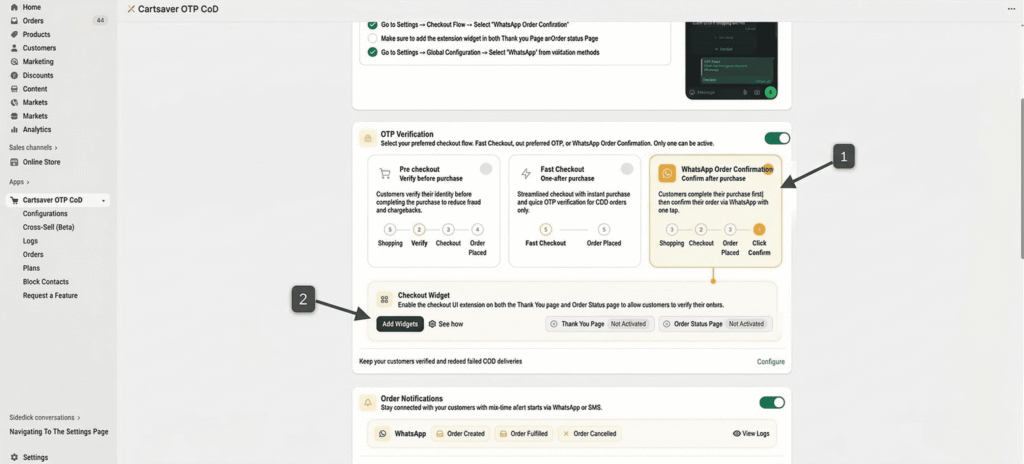
Navigate to the OTP Verification section in your Cartsaver dashboard. Select the third option: “WhatsApp Order Confirmation (Confirm after purchase).” This ensures customers complete the checkout first, then verify via WhatsApp.
Step 2: Add the Checkout Widgets
Below the flow selection, locate the Checkout Widget box. Click the [Add Widgets] button. This will redirect you to the Shopify Checkout Editor.
Step 3: Place the Extension on Your Store
Once in the Shopify Editor:
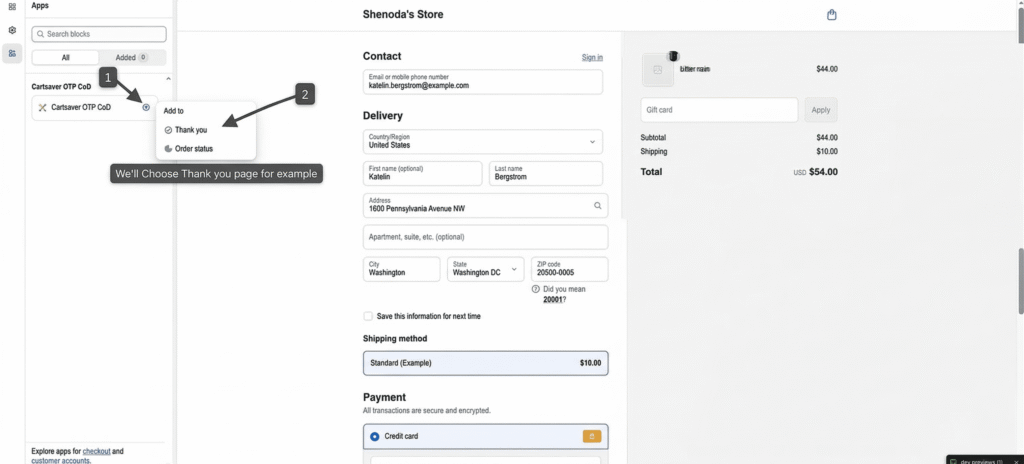
- Click the “Add App Block” icon (usually a ‘+’ or puzzle icon) on the sidebar.
- Select Cartsaver OTP COD from the list.
- Choose the “Thank you” page (and repeat for the “Order status” page).
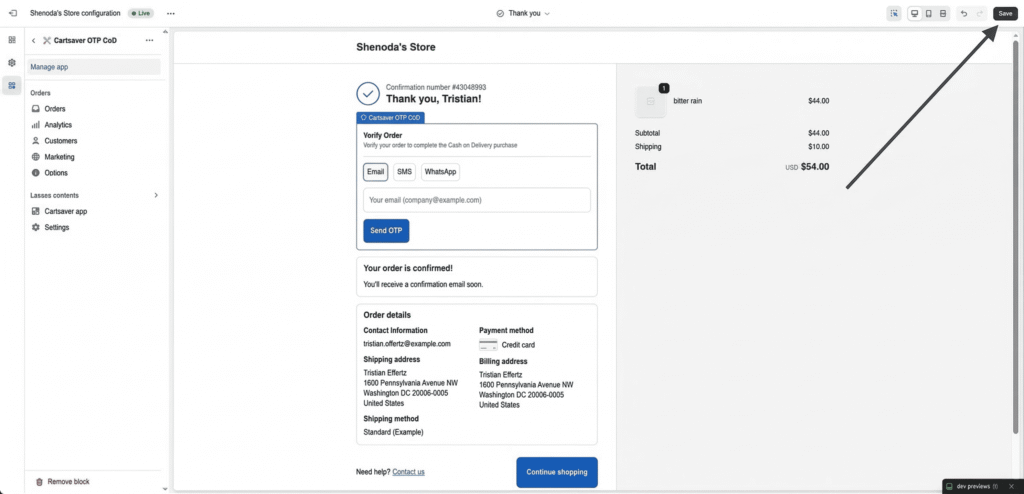
- Crucial: Hit the [Save] button in the top right corner to make the widget live.
Pro-Tip: The “Golden Window” for Auto-Cancellation
We recommend setting an auto-cancellation window of 12 to 24 hours. This gives customers enough time to check their phones while ensuring you don’t hold inventory for “ghost” buyers who never intended to pay.